Schedule
From a Repair Order-
The Service Schedule is accessible from a ticket by selecting the Service button:


From Schedule
The schedule on the left-hand sidebar will show you all appointments scheduled for the service center.


Reading the Schedule
Mechanic Color
If there is an assigned mechanic on an appointment, the left-most border will show their color. A color legend is shown at the bottom of the page.


If you want to assign a specific color to a mechanic, see here.
Ticket Appointments
If you have a ticket opened and are looking at the schedule tab, appointments that are colored a dark gray are appointments for the ticket you're on.


Internal Appointments
If an appointment is for an internal ticket, a black bar will show on the left-hand side of the appointment on the schedule.


Ticket Details
If the appointment was created from a ticket, the ticket #, vehicle, and customer will automatically show on the schedule. If a description was entered when creating the appointment, that will also show.
Hovering over the appointment will also show you additional details. This can be useful if the scheduled appointment is too short to see the full description, or if you want to see the ticket complaints.


Creating an Appointment
Creating an appointment is as simple as clicking and dragging on the schedule where you want the appointment to be. Then, you'll be presented with a scheduling dialog:
- Description - A description of the work being performed.
- Mechanic - The mechanic to assign to the appointment. If you've set up Mechanic Colors the color will be displayed on the left-hand side of the appointment.
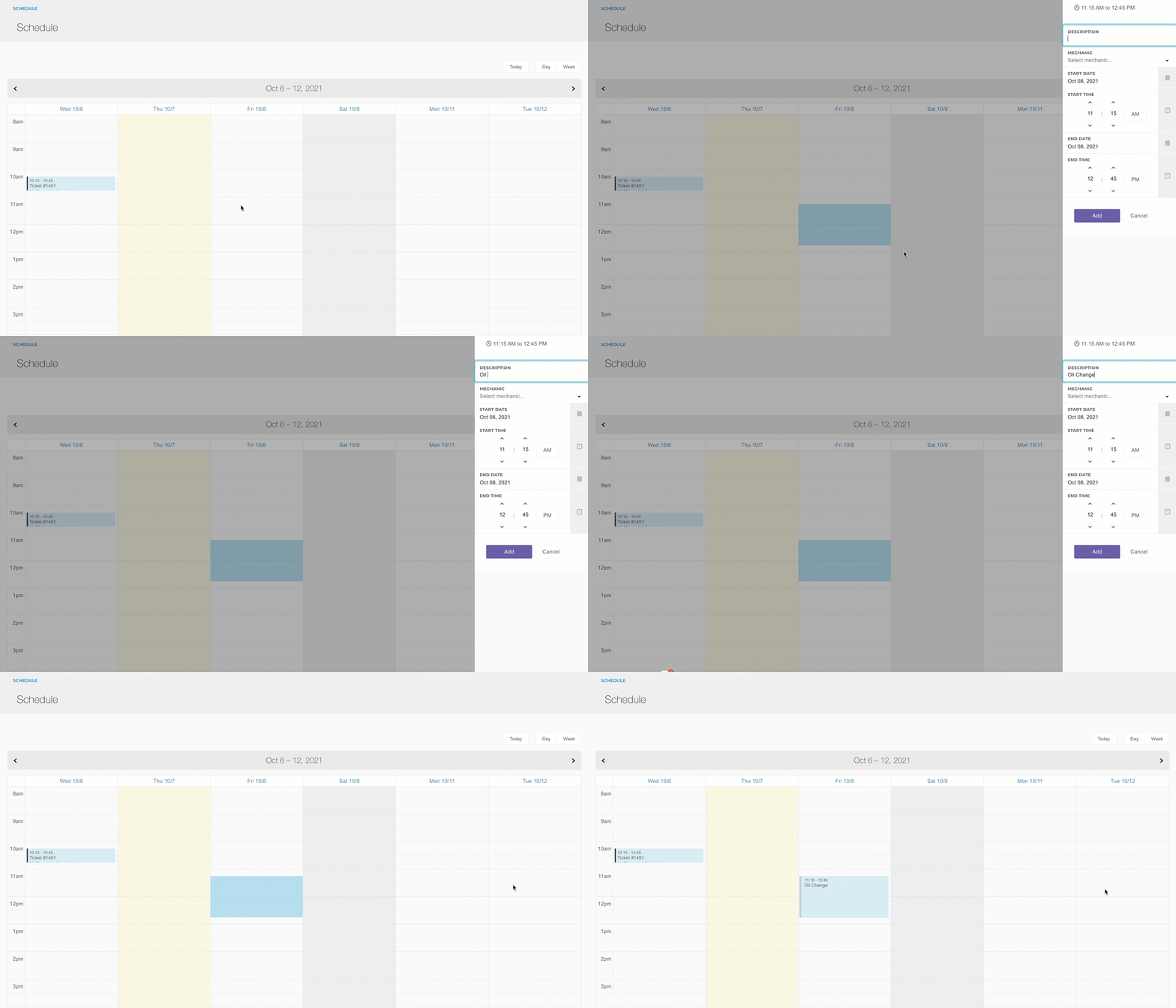
Creating an Appointment on the Generic Calendar
You can also create appointments on the Generic Calendar, as well, by clicking and dragging on the schedule where you want the appointment to be. You'll be presented with the same options for customizing the event as described in Creating an Appointment.
Appointments created on the Generic Calendar won't link to a ticket.
Mechanics
When adding or editing a user under Manage > Users, you can set up mechanic details.
- Mechanic? - This will show the user in the mechanic dropdowns for appointments, ticket lead mechanics, and labor mechanic assignments.
- Color - Used for the service schedule and color coding appointments.
- Mechanic Hourly - The hourly rate the mechanic is paid for work billed to the customer.


