Communications
Communication is at the heart of the leads system. It allows you to connect to your customer using the method they prefer.
Texting
Texting (SMS/MMS) is the best way to communicate with customers today. Leads are more likely to engage and do so more quickly.
Texts always come from the same phone number at your dealership, assigned to you by dealr.cloud:
Leads Phone Number: +19701234567
Sending Texts
The first time you send a text on a lead, you'll need to Start a Conversation. This will create a texting conversation for you to be able to send texts to the lead.


Clicking the texting conversation button will open up a chat dialog where you can send the lead messages:
- Attach photos of inventory
- Upload other photos
- Use lead templates


Receiving Texts
Existing Lead Conversation
If a text conversation has already been created (for example, you've already sent a text) and customer sends you a text to the above Leads Phone Number, then the text will be received on that lead. The assigned user and collaborators of the lead will receive push notifications (depending on notification preferences) so that you can respond to the customer.
New Text
If there is no text conversation when the text is received, a new lead will be created with a source set to dealr.cloud Text. Because we don't have the name of the customer, only the phone number, the lead will be created with a name of Unknown and the only customer information will be the phone number. At this point, you should ask the customer for their name and the vehicle they're interested in (if they haven't already provided it).
Calling
Calls are handled by the same phone number as texts, and allow you to communicate with customers verbally. You can make outbound calls from the leads system, and also receive calls. In both cases, calls get routed through your cell phone.
Making Calls
The first time you make a call on a lead, you'll need to Start a Conversation. This will create a calling button for you to be able to initiate calls on your lead.


Calling Steps
- Calling you - The system will ring to the phone number on your user login.
- Press a key - Once you pick up, you'll hear a message telling you to press any key to connect.
- Connect to customer - The customer will be dialed and connected to your call.
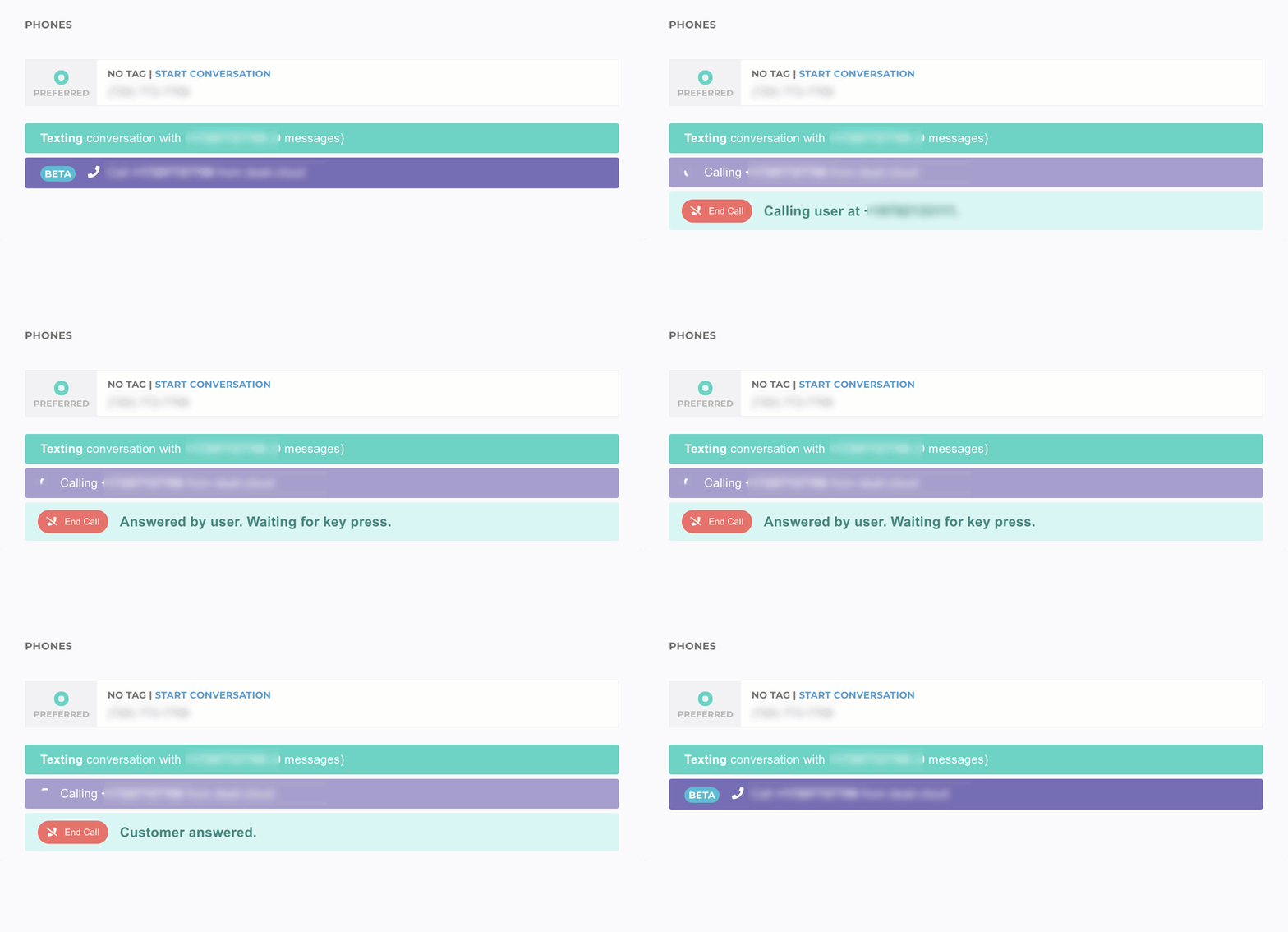
After you're done with the call, the call's length, who placed the call, and the time of the call will be placed in the activity log.
Custom Outbound Calls Phone
If you want to change the phone number that gets called when you place an outbound call, you can do so in your User Settings.
Enter the phone number you want to be called, and an extension (if applicable). If you need to navigate a phone menu, you can use a comma , to pause for 1 second. Multiple commas will pause for 1 second each
Extension example, ,1,,,234#:
- Waits 1 second
- Enters
1 - Waits 3 seconds
- Enters
234#


Receiving Calls
In order to receive a call, your customer has to call your leads phone number. Where the call gets routed depends on whether there's already a lead in the system.
Existing Lead Conversation
If you've already clicked Start Conversation on a phone number in a lead, then the call will automatically get routed to the assigned user on that lead. If you don't want to receive calls forwarded to your mobile phone, you can uncheck the Forward Lead Calls to Cell checkbox in your user settings.
New Call
If there is no conversation started for the phone number, then the call will get routed to the dealerships main phone number in settings, or the Leads Calls Forwarding Number (if set).
:::note Lead Creation by Inbound Phone Calls The system is able to receive and send lead data exclusively in ADF format, which is a specific way to format data. As such, automated lead generation by inbound or outbound phone calls is not supported by the platform. For more information, see this article. :::
Emails can be sent from a lead and are all routed through the dealr.cloud email relay. This means that the email you send from will look like lead-ljnasd@leads.dealrcloud.com, allowing the customer to reply and have the email be automatically associated with the correct lead.
Sending Emails
To send an email, make sure you've clicked the Start Conversation button on the email. Then, click the Email Conversation button and you can send emails!


Copied Emails to Sender
Any emails you send will automatically send a copy to your email inbox. This allows you to keep track of all of your emails in one place.
If you want to disable this, you can uncheck the Copy Me on Any Emails I Send checkbox in User Settings.
Replying to an Email
You can reply to emails just like you send an email, but you can also reply to the email in your inbox.
When a customer replies to one of your emails, you'll be forwarded a copy to your personal email inbox (Gmail, Outlook, etc.). If you respond to this email, it will automatically get routed to dealr.cloud, recorded in the lead, and then sent to the customer. This makes it easy to manage your customer correspondence through dealr.cloud in the same place you manage all your emails.
Receiving Emails
Any emails received back from the customer using the email relay will get added to the lead and the assigned user and any collaborators will receive a notification (depending on preferences) that an email has been received.
Facebook Messenger
Our Facebook Messenger allows customers to send you a message from your Facebook page, or from your inventory list on your Facebook page, and it will automatically create a lead for you to respond to and communicate with.
You can't "start" a messenger conversation from the dealership, but once the customer initiates the conversation you'll be able to have a two-way chat using dealr.cloud that will get sent through Facebook Messenger for the customer.