Photos
The photos tab makes it easy for you to upload and manage your photos.
Uploading Photos
From your Computer
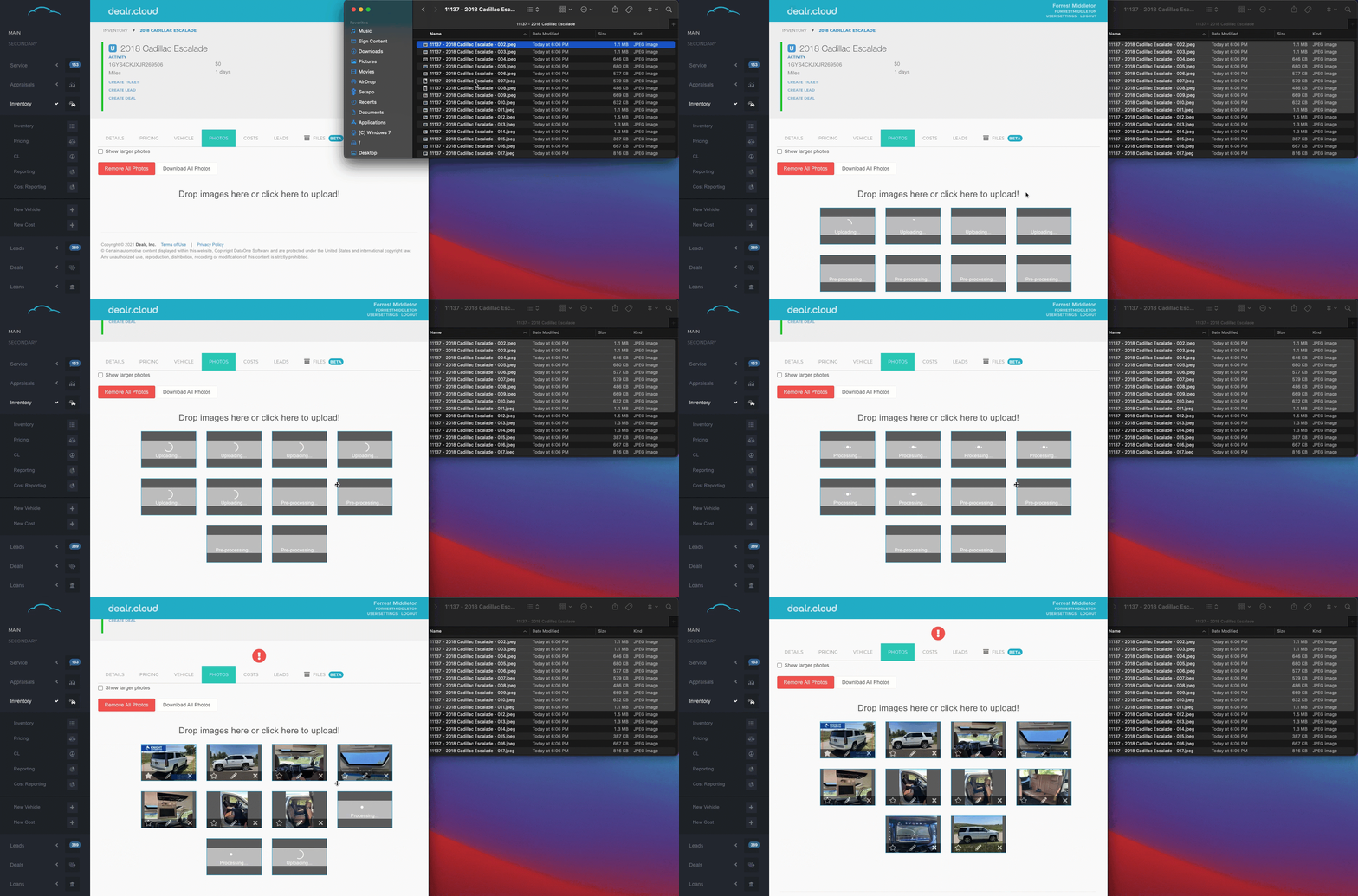
You can drag and drop your photos from your files on your computer. If you have all the photos in a folder, you can also just drag and drop the folder into the photos section.
From the Mobile App
It's also easy to upload photos from the mobile app. Just open up the vehicle, go to photos, and start taking pictures! The photos will automatically get uploaded and be shown on your vehicle.
Editing Photos
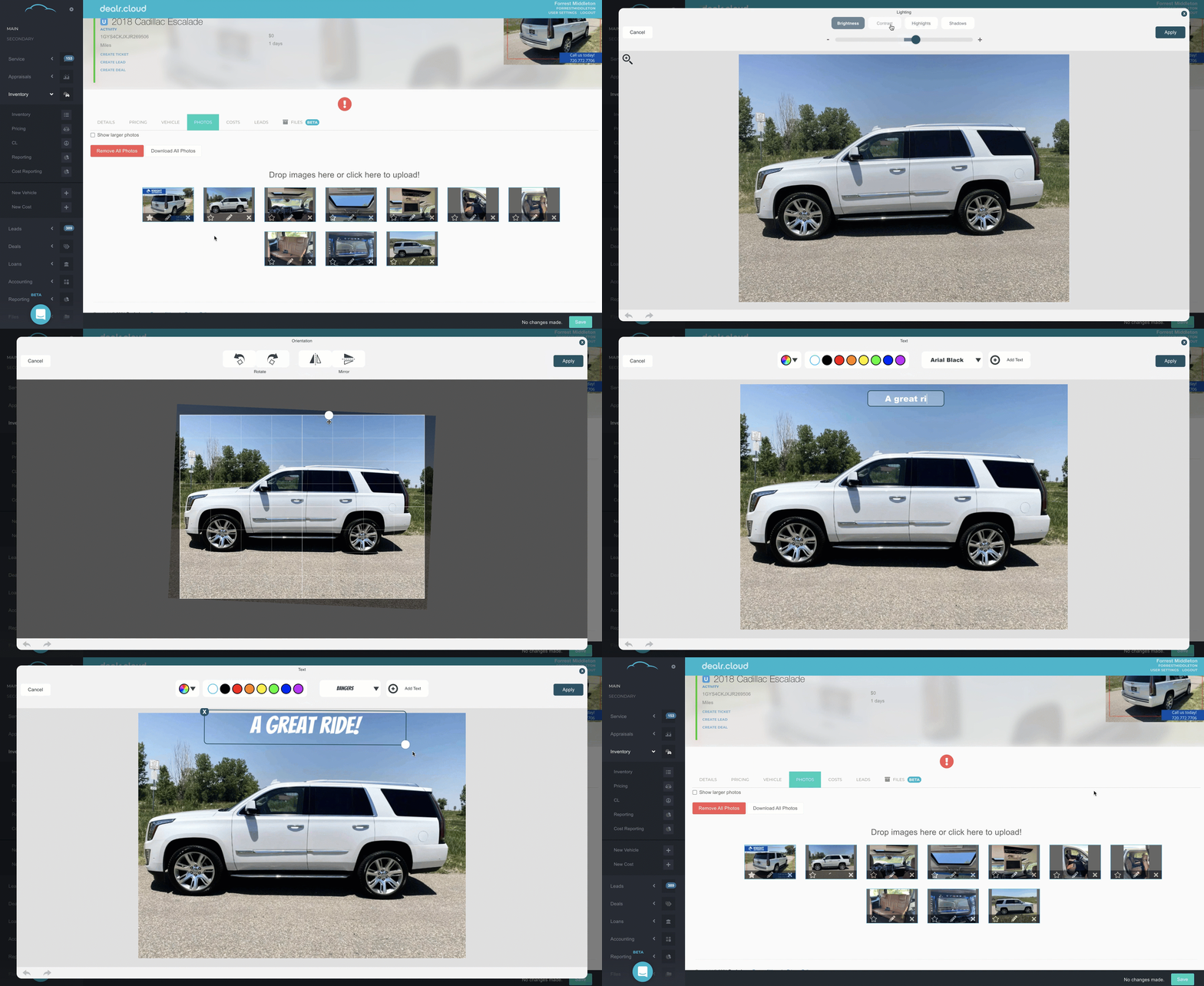
You can edit photos using our photo editor to make minor edits and adjustments to your photos.
Reordering
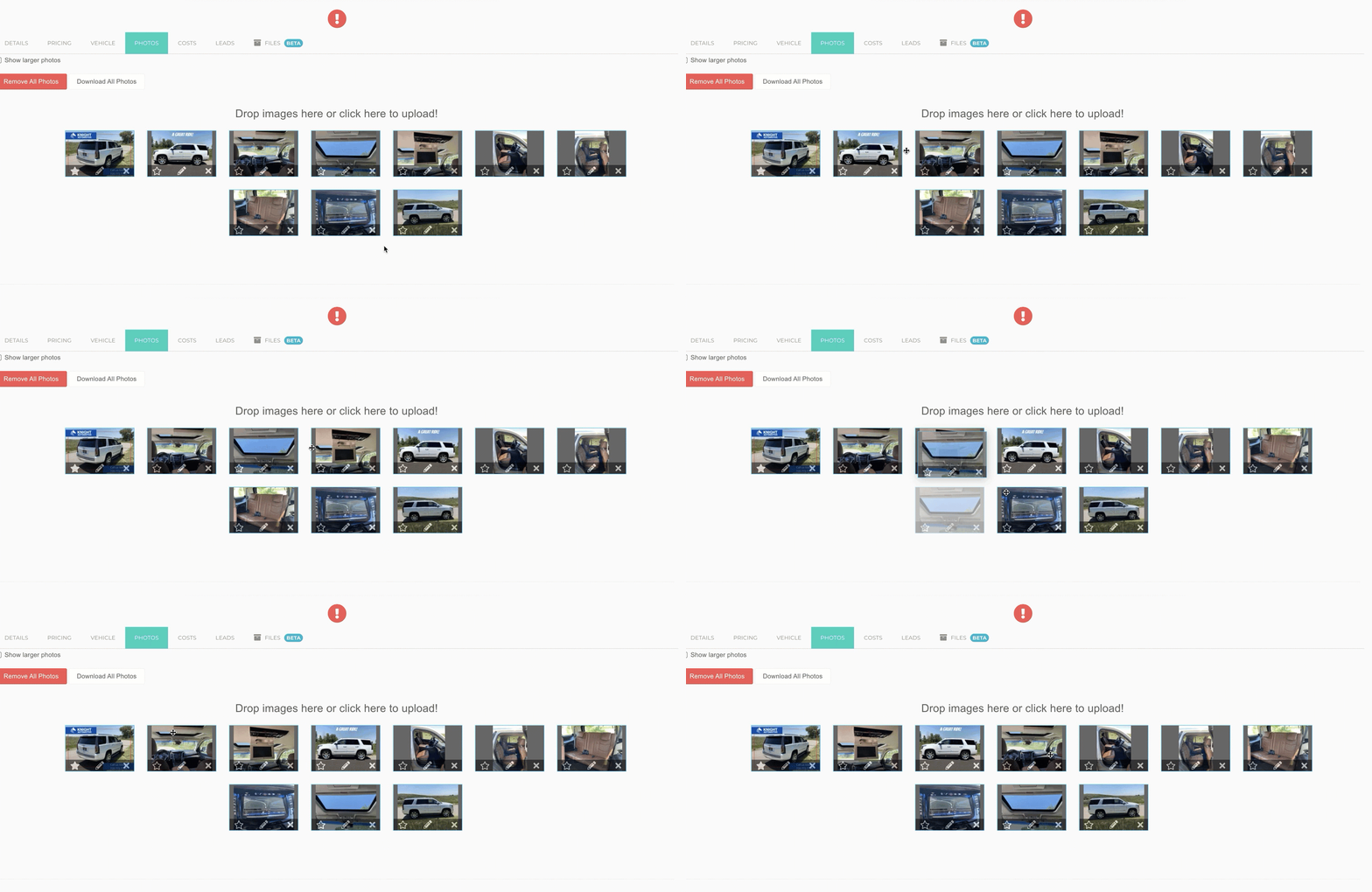
Reordering photos is easy - just drag them to the position you want them in and you're done!
Primary Photo
The primary photo is the first photo that is shown on your website in featured sliders and on the SRP page. To change the primary photo, just click the star on the photo you want to be the primary photo.


Photo Overlays
Photo overlays can be automatically applied to the first photo you upload. While we can't provide you with any photo overlays, the specifications for them are below:
- Must be a transparent PNG image
- Should be 2500 pixels on its longest side
- The aspect ratio should match the photos you normally take
- For example, a photo that has an aspect ratio of 3:2 should be 2500 pixels wide and 1666 pixels tall.
- Ratios are maintained on upload and, if needed, the photos are always resized down to 2500px on the longest side.
It's important that your photo overlay be transparent in the middle so that you can still see the image. Just uploading your logo will not work because it will cover up the whole image. It needs to be an image that was actually created as an overlay.
Example:


Uploading Photo Overlays
You can upload photo overlays by navigating to Manage > Settings > General > Inventory and then scrolling down until you see a section labeled, Default Photo Overlay.


Default Action
This setting allows you to default photo overlays on all added photos. You have the option of defaulting the photo overlay on:
- The first photo
- All the photos
Uploading Overlays
To upload an overlay, click on the text, Drop overlays here or click to upload, as referenced in the screenshot above. This will open up your file explorer on your computer where you can next select the overlay image.
Once you've uploaded the image, you should see it populate in the gray box above. It'll look like the image referenced, below:


Next, you'll want to select the checkmark sign in the bottom left-hand corner of the screen. This will confirm your overlay selection for the images.