Advertising
The Main Individual Inventory page gives you the option to control the advertising status of the vehicle in question.
Inventory Feeds
Feeds are used to set up inventory and lead feeds to your marketing sites. Examples include third-party sites like CarGurus, AutoTrader, Cars.com, TrueCar, CarFax, etc.
Requesting FTP Feed Setup in dealr.cloud
You're able to submit an FTP setup request email to the desired third-party provider.
This email will simultaneously request that the third-party marketing site accept the dealr.cloud inventory export and send leads into the system.
For third-party marketing sites that require additional account information, like Carsforsale and Autotrader, to set up the feed, the email will request that the third-party company provides the Dealer ID in the email chain.
It's important to note as well that you'll need to have an existing account with this third-party provider before setting up the feed.
Feed Settings
In order to set up the feed, you'll want to navigate to Manage > Settings > Feeds.
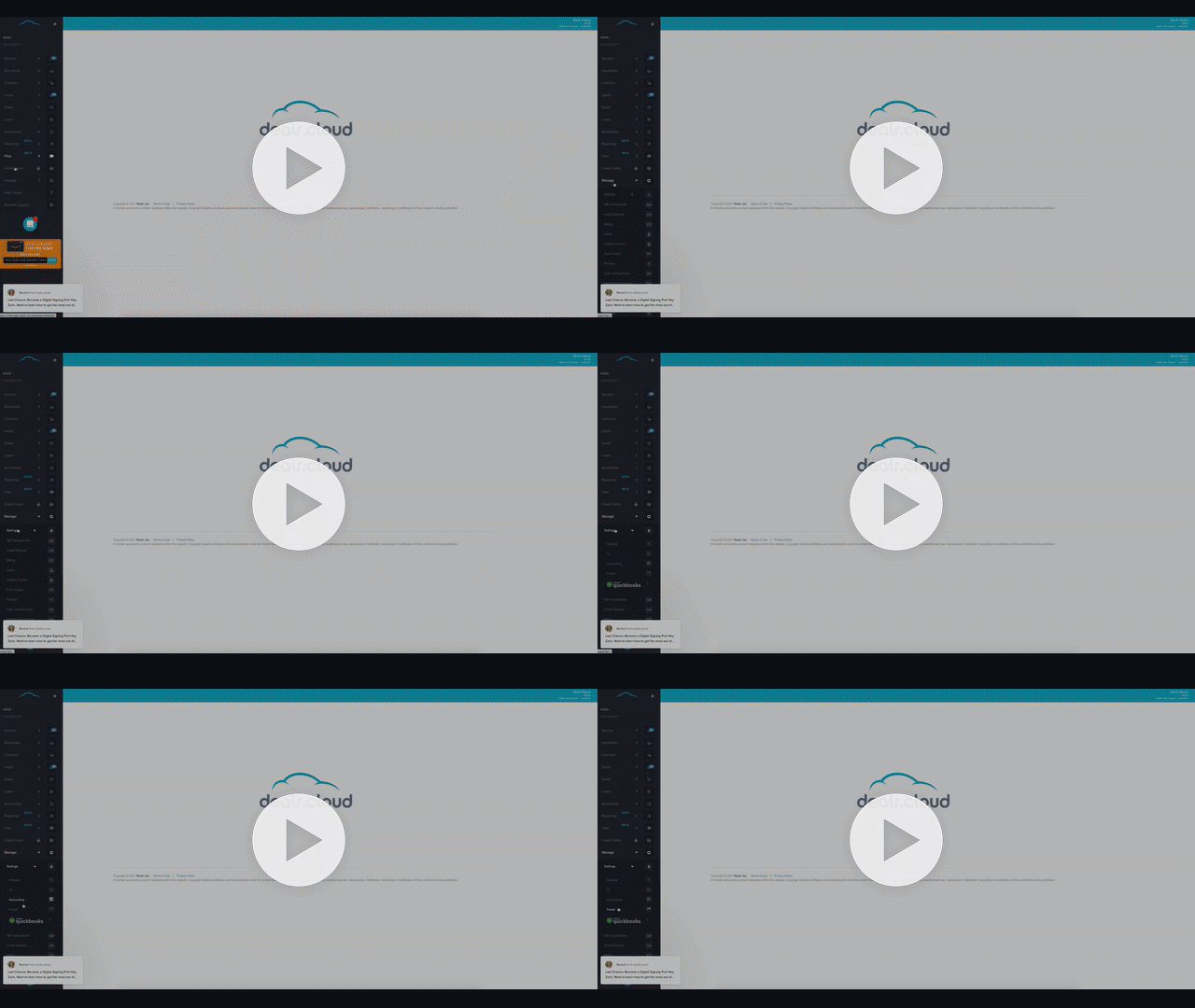
You'll next be brought to your Feed Settings. Here, you'll see all feeds that you've requested to setup.


Adding a New Feed
In order to add a new feed, you'll want to select the "New Feed" button in the top left-hand corner of the screen.
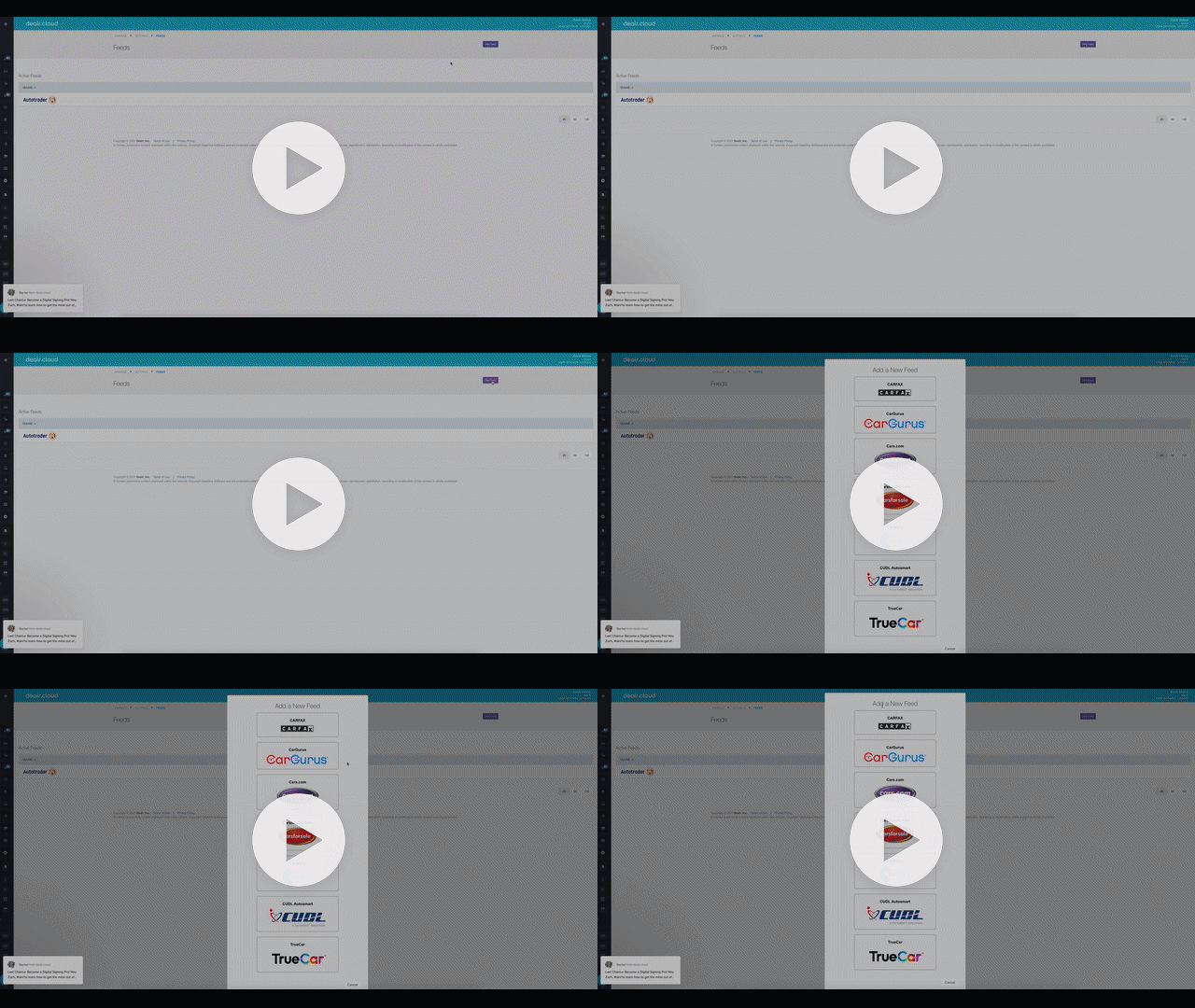
Here, you'll see a box appearing prompting you to select which feed you'd like to set up.


To proceed, you'll want to select the feed with which you have an account.
If you don't see a third-party marketing site on the list and you'd like to request to set up the feed, don't worry! You'll want to contact the third-party provider in that case and have them reach out to us at support@dealr.cloud, and we'll start the process of setting up the feed.
Authorizing the Feed Setup
After you've selected the feed, you'll be brought to the feed authorization page.


Here, you'll see the form the system will send to the selected third-party provider. It will include all the information needed to export your inventory and start receiving leads from this provider.
If you're setting up a feed for either Carsforsale or Autotrader, the email will also request that the vendor provide the dealership's unique Dealer ID.
Finalizing the Feed Setup
To finalize the feed setup, you'll need to type in your name in the "Signature Box" highlighted in the image above and then select "Create" in the bottom right-hand corner.
Once you've completed those steps, you're all set! The third-party provider will be immediately notified and both your dealership and the dealr.cloud support team will be copied on any replies.
Confirm the Third-Party Marketing Site Setup
You need to make sure that your dealr.cloud account is setup with the third-party marketing site in question. If you're unsure, please contact us and we'll confirm with you if we have the feed set up.
Once you've confirmed that the marketing site is setup with your account, you'll need to make sure that this third-party site is accepting our inventory feed. If you haven't already done this, contact them via email or phone and confirm that they're accepting our inventory feed.
How to Advertise Inventory
Sending your Inventory to Third-Party Marketing Sites
To advertise your inventory, you need to ensure first that your vehicle is set to "Active".
Setting your vehicle to "Active" will ensure the following:
-Sent to your dealr.cloud website: immediately (sometimes takes up to 15 minutes)
-Sent to your other marketing sites: will be sent out in the next feed (3-24 hours depending on the provider)
Taking Vehicles Off Third-Party Marketing Sites
To remove vehicles from your website and marketing websites, you need to mark the vehicle as "Inactive."
Removing Inventory from Marketing Site but not your Website
If you want to keep your vehicle on your in-house website but remove it from your marketing sites, you want to do the following:
-Click on the secret circle next to Status -Click on the "Don't Export" checkbox
Post Inventory to OVE
Setting Up OVE
We need to sync your account to your OVE account. If you haven't had us sync your OVE account yet, please message us and let us know you'd like it set up.
Important: include your OVE id in your sync request message.
Post Inventory to OVE
Once OVE has been synced to your account by the Support team, you are now free to post any of your inventory to OVE. To post to OVE:
-Open your Inventory Page and click on the "Queue to OVE" button on the top right-hand side of you inventory screen.


- Select the vehicles you want to push to OVE.


- Click the "Send Queue" button.


-You're done! It can sometimes take OVE a few hours to update inventory information pushed to them.