Introduction
The Files platform is a convenient and easy way to store files securely on the following Items:
- Appraisals
- Inventory
- Costs
- Leads
- Deals
- Payments
- Service Tickets
- Loans
- Entities (Customers, Vendors)
- Accounting
Benefits
The primary day-to-day benefits of the Files system are:
- Attaching records directly to the respective inventory, deal, customer, etc.
- Removing the need to maintain a paper copy
- Driver's license copies
- Signed paperwork
- Easy access for uploaded files, no matter how old
- Automated linking between leads and deals to ensure files are always accessible when needed
- Real-time PDF viewing from optimized storage conversions
While you can accomplish some of the above functions with other storage systems (like Google Drive, Dropbox, etc.), they're not specifically built for the redundancy and security that dealerships need.
The primary differentiators for the Files system are:
- Encrypted at-rest file storage and in-transit file transfer
- Replication across two completely isolated regions, with in-region fault-resistance redundancy
- Permission-based access control for different file types
- Long-term storage against Items (like deals, leads, etc.) with easy long-term access (no more having to search through thousands of files for one deal)
Uploading Files
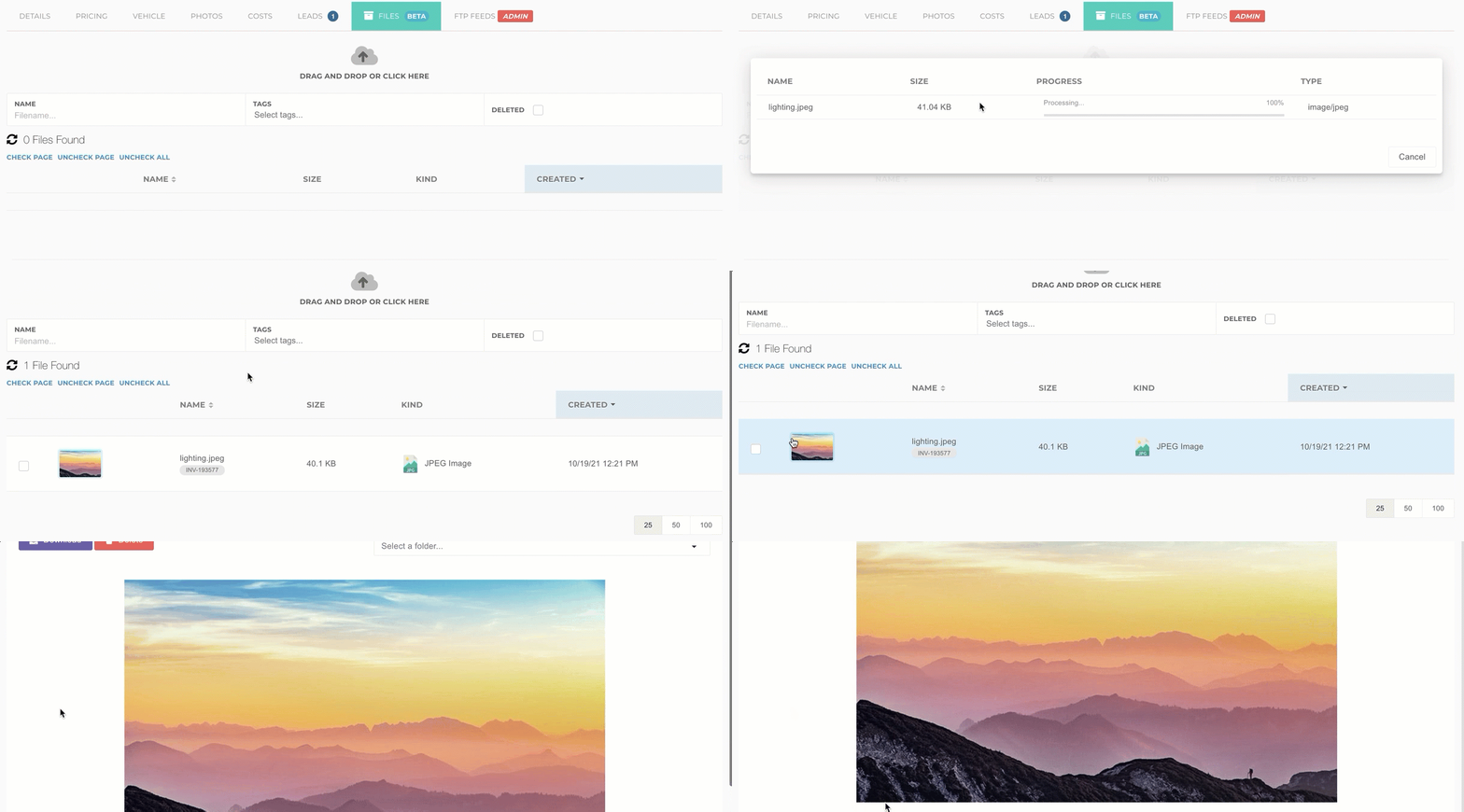
Uploading files is a simple drag and drop process. Open up the files tab or dialog on whatever Item you want to upload files for, and drop the file on top! Alternatively, you can click to navigate and upload the file directly.
Bulk Add
The system allows you to add multiple files at once to the Files storage system. In order to add bulk files, you’ll want to select the “Drag and Drop or Click Here” cloud image at the top of the page. This is seen, below:


This should open up the file explorer on your PC or Mac. Here, you can hold down the CTRL button, if on a PC, or the Command button, if on a Mac, to select multiple files. Confirm your choices on the screen, and those files should be uploaded and saved in the system.
Adjust Page Length
The system allows you to toggle between how many files are shown on a single page. You can adjust this by navigating to the bottom of the page in the right corner. Here, you should see options to adjust how many line items will appear on the page. Select your desired amount and the page should update and adjust automatically.


Delete Files
You have the ability to remove files from the Files module as well. There are a few different ways to do this.
Select Files Manually
You can select which files you want to delete in bulk by clicking on the checkbox on the left-hand side of the screen.
Next, select the red button in the top left corner of the screen, “Delete File.” This will remove the file from the storage page.
Check Page
If you want to remove all the files on the page at once, you can select the button in the top left-hand corner of the screen, “Check Page.” This will check every file existing on the page.


Finally, select the red button in the top right corner of the page, “Delete.” This will remove all the files from storage.
Deleted Files
All files selected for deletion will be stored for 30 days, after which they'll auto-delete. You can access your deleted files within the 30-day time frame by selecting the red "Delete" files button in the top of the Files page. Here, you can restore any file that you selected for deletion or bypass the 30-day time frame by permanently deleting the file.
Storage should be removed from your billing in the next billing cycle.
Document Scanner
The mobile app is also a great way to upload files. You can take photos or upload photos from your photo library.
There's also a scanner you can use to upload documents, check out our Document Scanner for more details.