Forms
The Forms tab enables you to print paperwork for your deal.


Form Packs
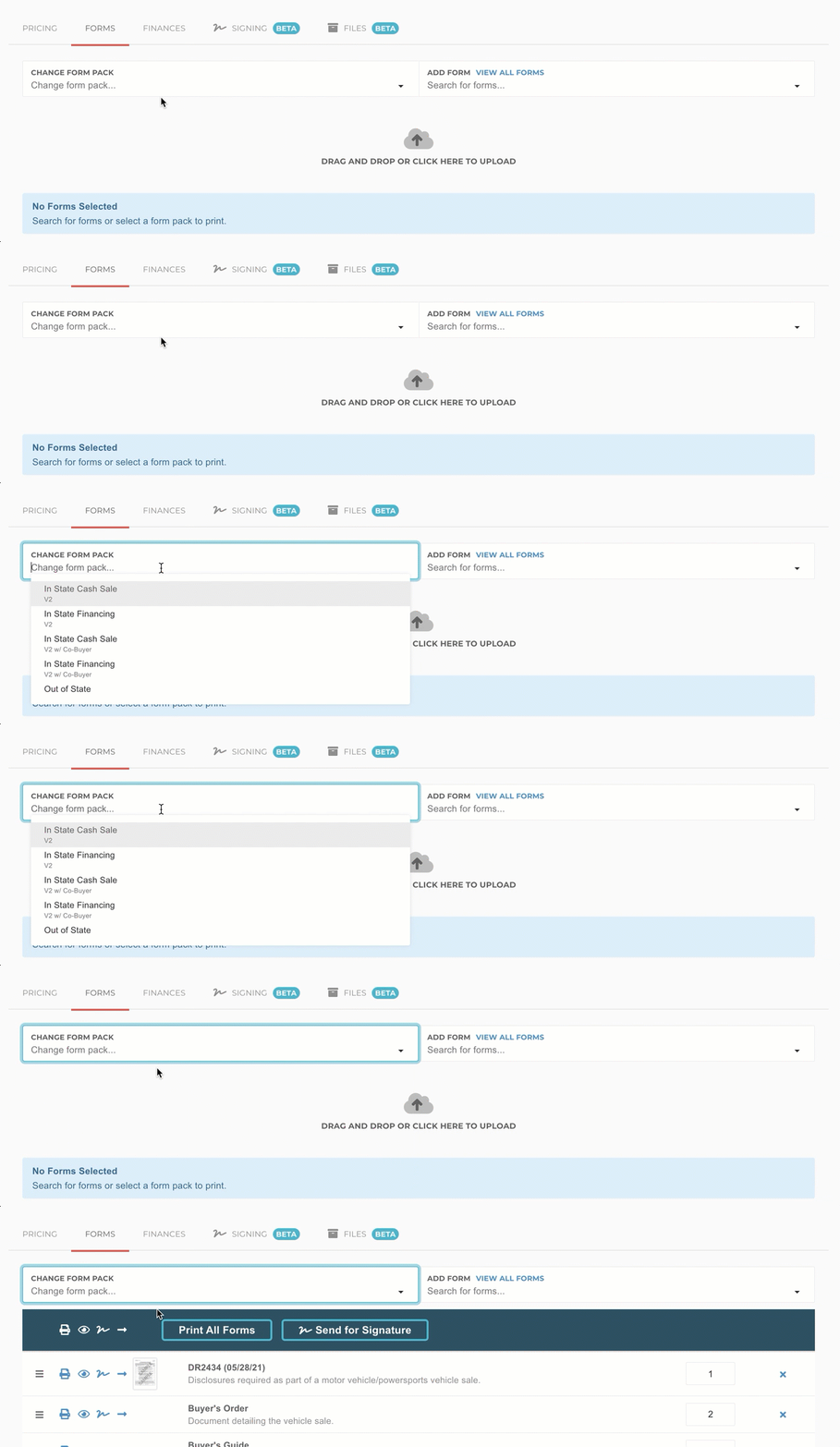
The key component to getting forms onto your deal is a Form Pack. This enables you to build groups of forms that cater to each different deal type you have. Some common examples:
- Cash - Single Buyer
- Cash - Two Buyers
- Financed - Single Buyer
- Financed - Two Buyers
- Out of State
You're welcome to build more, such as based off of bank or different deal structures. Form Packs is a powerful tool to help streamline your process.
Select a Form Pack
To select a form pack, just use the Change Form Pack dropdown.
Edit Form Packs
Editing form packs can be done from Manage > Form Packs.
Finding Forms
Finding, or adding, forms can be done using the Add Form dropdown. You can search for forms in this box to add additional forms, such as a power of attorney, to your deal. This makes it easy to modify the forms for a particular deal quickly.
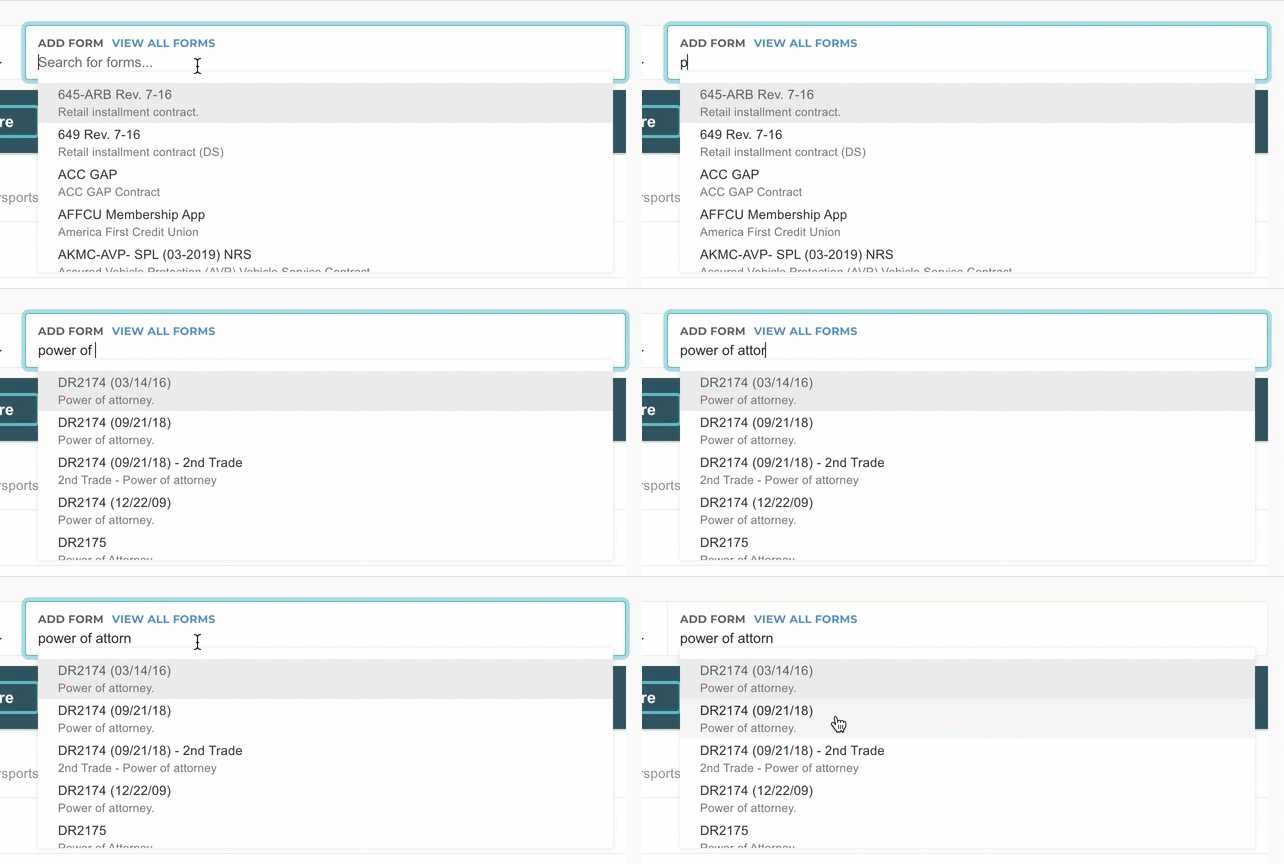
By default, only forms that are programmed for your state or are categorized as generic forms will show in this dropdown. If you want to see forms for all states, check out Search All Forms below.
Search All Forms
Searching through all forms allows you to see forms for every state that is programmed, as well as company specific forms, like for a lender. You can access all forms by clicking the View All Forms link. From there, you can search for any form, and filter down to specific states if needed.


Printing Forms
Most of the time you should be printing all of your forms at once. This makes it easier to get all the paperwork out quickly, and can help prevent missed forms because you're printing them all at once.


Print Individual Forms
You can print forms individually using the printer icon next to each form.


Download Forms
You can print forms individually using the eye icon next to each form.


Pre-Printed Forms
Pre-Printed forms are commonly used for carbon copy formats in the automotive industry, allowing you to have a "template" of sorts already printed on a page that just needs to have the blanks filled in.
Dot Matrix Forms
Dot Matrix forms use an impact printer (typewriter technology!) to impress characters onto the form. This enables you to have a carbon copy of the printed document to provide to the lender, DMV, customer, etc.


To learn more about printers, click here
Pre-Printed Laser Forms
If you have a laser form that is pre-printed that you have to load into your printer, you'll also be able to print the blanks from forms.
Alignment
Alignment is the process that you use to get the printed information from forms to show up in the specific place on your form it needs to show up. The first step is to Print Alignment Marks, and then drag the marks around on your screen so they match the printed page.
Alignment for dot matrix forms is saved against both the form and the specific printer you've selected in the printing dialog. For laser forms, alignment is stored against the form across all printers.


Digital Signing
Send for Signature
You can send the whole form pack for signature using the Send for Signature button, or you can send individual forms using the signature icon.
Check out our page on Digital Signing for more details.


Uploading Forms
You have the ability to upload forms directly to the deal. This enables you to attach individual forms to the form pack and program signatures, checkboxes, and dates.
Forms can be uploaded inside the Forms tab in the deal in question. You'll next want to select the cloud icon located at the bottom of the page. This will open the file explore where you'll then select the form in question.


Deal Form Editor
The Deal Form Editor enables you to modify the uploaded form to superimpose essential elements from the system in order to complete the deal.


This allows you to add onto the form:
- Signature
- Checkbox
- Date
- Text
These options can be found in the bottom left-hand corner of the Deal Form Editor box.


Signature
You can add a signature box to the form by clicking on the Signature tab in the bottom left-hand corner of the Deal Form editor box and dragging it onto the form. You can place the signature box wherever it's needed on the form.


After placing it on the form you're given the option to specify who the signer is:
- Buyer
- Co-Buyer
- Dealership


This is compatible with the Digital Signing feature whereby the signer indicated on the form will be instructed to e-sign the uploaded form.
You can also remove the box by selecting the Remove button located inside the box in question.
Checkbox
The Checkbox allows you to add an interactive checkbox onto the form so that a customer may check-off an item.
You can add the checkbox by clicking on the Checkbox tab in the bottom left-hand corner of the Deal Form editor box and dragging it onto the form. You can place the checkbox wherever it's needed on the form.


After placing it on the form you're given the option to specify who the signer is:
- Buyer
- Co-Buyer
- Dealership
The Required checkbox, if selected, will force the recipient to check the box in order to complete the signing of the form.
You can also remove the box by selecting the Remove button located inside the box in question.
Date
The Date box allows you to insert a date value from the system onto the form. This may be used when the customer would need to date a particular section on a form.
You can add the checkbox by clicking on the Date tab in the bottom left-hand corner of the Deal Form editor box and dragging it onto the form. You can place the Date box wherever it's needed on the form.


After placing it on the form you're given the option to specify who should be dating the form:
- Buyer
- Co-Buyer
- Dealership
The Required checkbox, if selected, will force the recipient to check the box in order to complete the signing of the form.
The Pre-Fill Date box, if selected, will pre-populate the date to be the current date.
You can also remove the box by selecting the Remove button located inside the box in question.
Text
The Text box enables you to add a section in which the recipient can input text. This can be used to complete any section on the form that needs text.
You can add the checkbox by clicking on the Text tab in the bottom left-hand corner of the Deal Form editor box and dragging it onto the form. You can place the Text box wherever it's needed on the form.


After placing it on the form you're given the option to specify who should be inserting the text onto the form:
- Buyer
- Co-Buyer
- Dealership
The Required checkbox, if selected, will force the recipient to check the box in order to complete the signing of the form.
You can also remove the box by selecting the Remove button located inside the box in question.